Enabling SQL Server Trace-Flags without a Service Restart
Contents
Overview
- Nothing advanced or tricky.
- Just an overview of how ONE way of enabling Trace Flags (as startup parameters) does ONE thing, and how another way of enabling Trace Flags (
DBCC TRACEON()) does the exact opposite. - Explained with STEP-BY-STEP instructions for each approach.
- And a simple outline of how to use BOTH as a means of FULLY enabling Trace Flags "right now" without needing to incur an immediate SQL Server Service Restart.
DANGER
SQL Server Trace Flags, BY DESIGN, change the behavior of your SQL Server Engine. Unless you know what you're doing, and/or have been directed by someone who does know what they're doing (and even then), be VERY careful with Trace Flags in any production environment.
Enabling Trace-Flags - via Startup Parameters
Enabling SQL Server Trace Flags via Startup Parameters is simple.
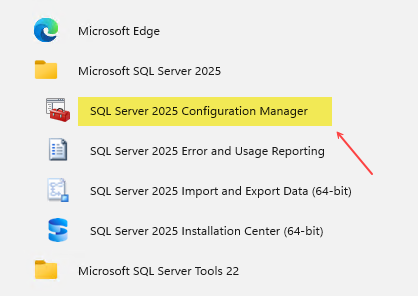
Start > Microsoft SQL Server #### > SQL Server #### Configuration Manager:
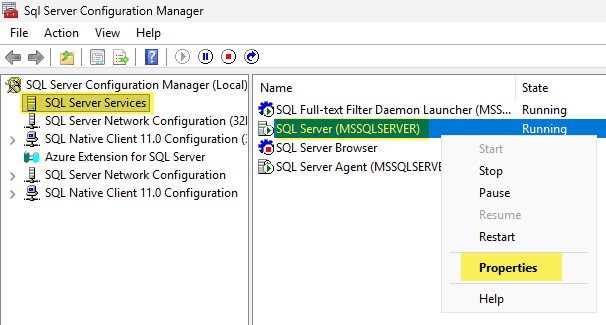
Then, in the SQL Server Configuration Manager, find your SQL Server Service, right-click > Properties:
- Click on the Startup Parameters tab within Properties. Then punch in the ID of the Trace-Flag that you want to add - in the format of
-T####- i.e., I'm adding Trace Flag4696in the screenshot below - so-T4696.
WARNING
If it helps, think of adding each trace flag as a 'switch' being sent into a .exe at startup - e.g., sqlsrv.exe -T1234 -T7890 and so on - because that's EXACTLY what these switches are. Get them and/or the "syntax" wrong and your SQL Server won't be able to start. Period.
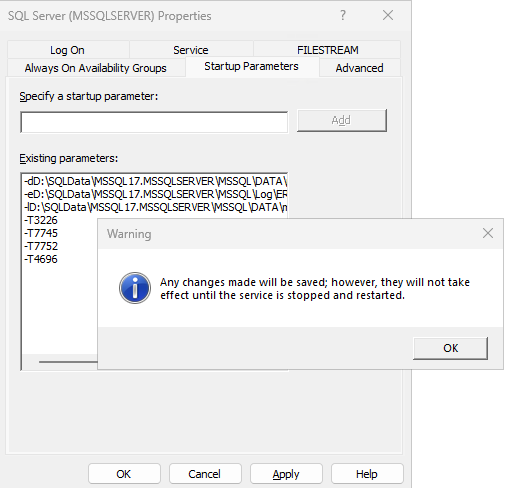
- Once you've specified the flag you wish to add, push the Add button, and then click on OK.
- Upon clicking OK, you'll see a warning similar to the following - which explains that your change HAS been saved, but won't take effect until you RESTART your SQL Server Service.
- At this point, if you're OK taking an outage for a restart of your SQL Server Service (or were already going to restart/reboot anyhow), feel free to restart your SQL Server Service or reboot.
Enabling Trace-Flags via DBCC TRACEON()
If you don't want to restart your SQL Server Service "right now" - or whenever you want/NEED to add a Trace Flag into your system, you can always add one temporarily - at a global level - via DBCC TRACEON() - like so:
DBCC TRACEON(4696, -1);
The above adds the Trace Flag in question AS IF it were a startup parameter - i.e., it becomes global in scope (by default everyone and everything has this TF turned on).
However, whenever your SQL Server Service restarts, any trace flags that were enabled (or disabled) via DBCC TRACEON() "go out of scope" - i.e., TFs applied by DBCC TRACEON() only apply until the next time your SQL Server Reboots.
TIP
You can query current trace statuses via DBCC TRACESTATUS() - where DBCC TRACESTATUS(-1); queries global statuses.
Enabling Trace-Flags without a Restart
Given that:
- Adding Trace Flags as Startup Parameters does NOT require a SQL Server Restart "right now", but ONLY applies your changes AFTER a Restart,
- And that
DBCC TRACEON()enables a Trace Flag UNTIL the next restart...
You can easily apply a Trace Flag "right here, and RIGHT NOW" without a reboot - and ensure that the Trace Flag remains in place AFTER a reboot.
Nothing secret or mysterious. Just
- Add the Trace Flag as a Startup Parameter.
- Triple Check that you defined it correctly - i.e.,
-Txxxx; - Don't restart SQL Server "right now".
- Use
DBCC TRACEON (xxxx, -1)to apply the Trace Flag - server wide - right now. - The next time your SQL Server restarts (normal patching/maintenance window, etc), the change you made via
DBCC TRACEON()goes OUT of scope (at shutdown), and the startup parameter comes INTO scope (at startup).